
AI agents
Work with AI agents
Let Claude, Cursor, ChatGPT and other AI apps work from the plans you keep in HiveSight.
Plan your work in HiveSight, and let your AI agent work from it. The agent reads a project's tasks and notes, follows the prompts you wrote there, ticks things off as it finishes them, and writes progress back. You see it all on your phone, live.
No more keeping plans in markdown files in your code, or retyping the same prompts to your agent.
It works through MCP (Model Context Protocol), the standard way AI apps connect to tools. So it works with Claude (Claude Code, the Claude apps and claude.ai), Cursor, VS Code, Windsurf, Gemini CLI, ChatGPT and any other app that supports MCP.
How it works
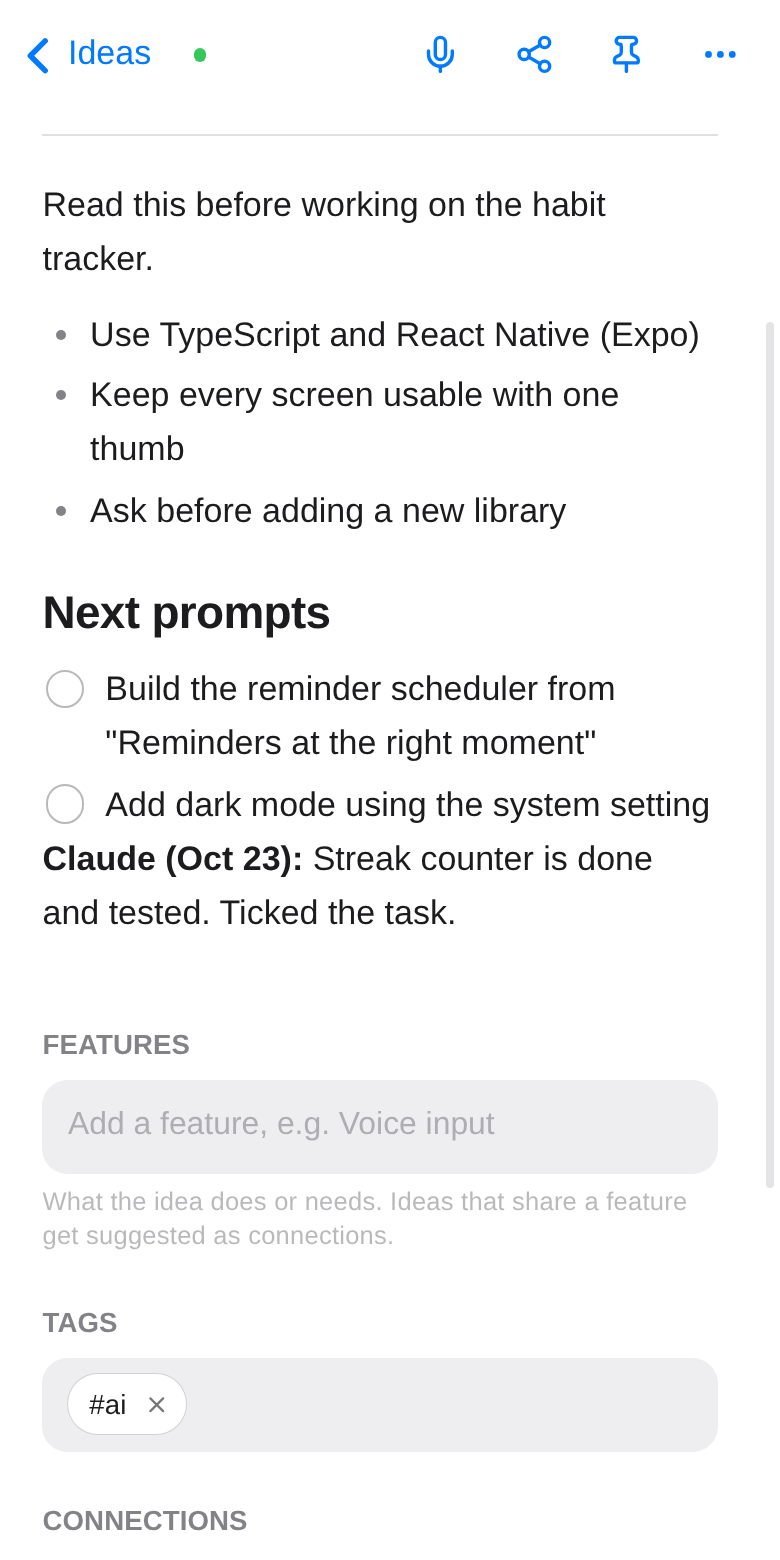
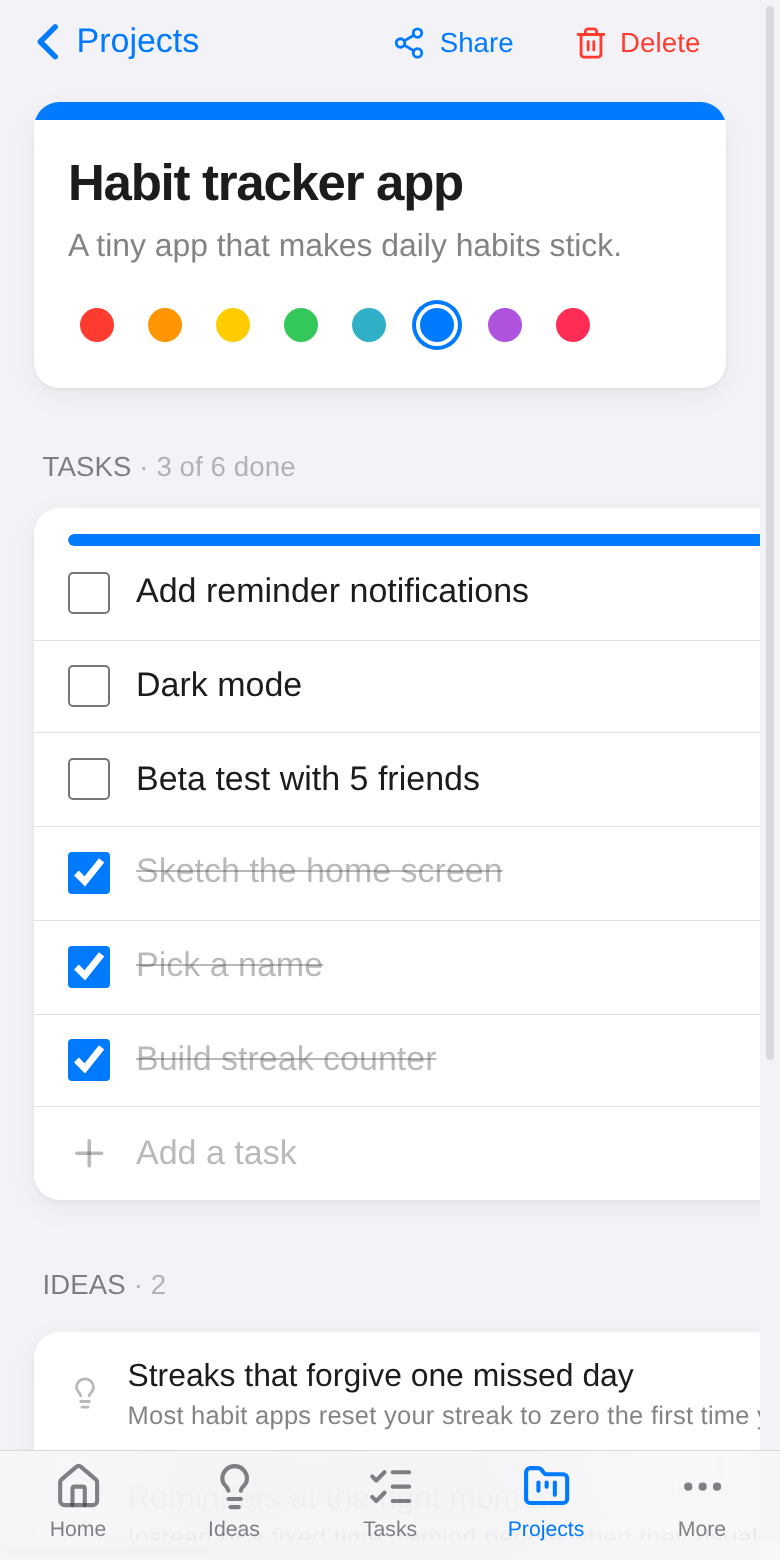
- You plan in HiveSight: a project with tasks, and a note tagged
aiwith your instructions. - You ask your agent: "Do the next HiveSight task for the habit tracker."
- The agent reads your instructions, does the task, ticks it off, and adds a short update to your note.
Step 1: Plan for your agent
- Make a project for the work, for example one per app or codebase.
- Add tasks: one task is one piece of work. The agent takes them from the top.
- Add a note tagged
ai(call it Prompts, for example) with your instructions: how you like things done, rules, context. The agent reads it before starting, like aCLAUDE.mdfile. - New prompt? Add it to that note as a checklist item (
- [ ]), from your phone, any time. The agent picks it up next time and ticks it when done.
Step 2: Connect your AI app
Quickest: in HiveSight, open Settings → Connect AI agents. It has the connector URL, the Claude Code command and a Cursor config with your key already filled in: tap Copy and paste it into your app.
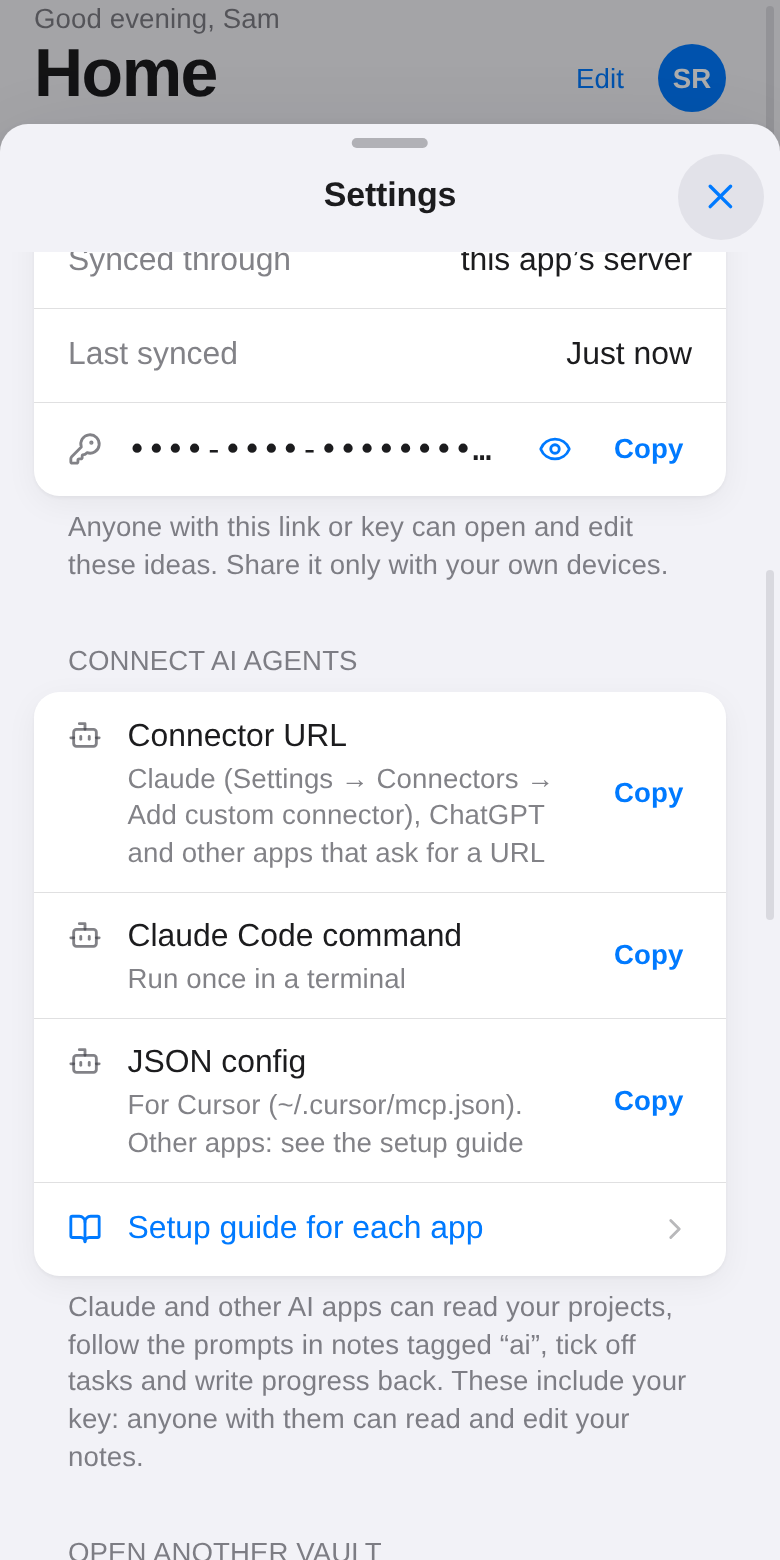
To do it by hand you need your vault key: in Settings, tap Copy next to your key. It looks like abcd-efgh-jkmn-pqrs. Below, replace YOUR-KEY with it.
Anyone with your key can read and edit your notes. Put it only in your AI app's settings, never in a code repository or a shared chat.
The server lives at:
https://hivesight.xyz/api/mcp
Claude Code
Run this once in a terminal:
claude mcp add --transport http --scope user hivesight https://hivesight.xyz/api/mcp --header "Authorization: Bearer YOUR-KEY"
Then start a new Claude Code session. /mcp shows hivesight as connected.
Claude (desktop, web, phone)
- Open Settings → Connectors and choose Add custom connector.
- Name:
HiveSight. URL:https://hivesight.xyz/api/mcp?key=YOUR-KEY - Save, then turn HiveSight on in a chat from the tools menu.
Connectors you add on claude.ai also show up in the Claude desktop and phone apps.
Cursor
Add this to ~/.cursor/mcp.json (or Settings → MCP → Add new server):
{
  "mcpServers": {
    "hivesight": {
      "url": "https://hivesight.xyz/api/mcp",
      "headers": { "Authorization": "Bearer YOUR-KEY" }
    }
  }
}
VS Code
Add this to .vscode/mcp.json in your project, or run MCP: Add Server from the command palette:
{
  "servers": {
    "hivesight": {
      "type": "http",
      "url": "https://hivesight.xyz/api/mcp",
      "headers": { "Authorization": "Bearer YOUR-KEY" }
    }
  }
}
If you add it to a project's .vscode folder, don't commit that file.
Gemini CLI
Add this to ~/.gemini/settings.json:
{
  "mcpServers": {
    "hivesight": {
      "httpUrl": "https://hivesight.xyz/api/mcp",
      "headers": { "Authorization": "Bearer YOUR-KEY" }
    }
  }
}
Other apps
- Apps that take a server URL (ChatGPT, Windsurf and others): use
https://hivesight.xyz/api/mcp?key=YOUR-KEY, or the plain URL plus the headerAuthorization: Bearer YOUR-KEYif the app lets you add headers. - Apps that only run local servers (a
commandin their config, like Codex CLI): use themcp-remotebridge. It needs Node.js:
{
  "command": "npx",
  "args": ["-y", "mcp-remote", "https://hivesight.xyz/api/mcp", "--header", "Authorization: Bearer YOUR-KEY"]
}
Step 3: Add the HiveSight skill (Claude)
The connector gives the agent the tools. The skill teaches Claude the workflow: read your ai notes first, take the next open task, tick it only when it's really done, report back in the note, and add new problems it finds as tasks instead of quietly fixing them.
- Claude Code: run
mkdir -p ~/.claude/skills/hivesight && curl -fsSL https://docs.hivesight.xyz/skill/SKILL.md -o ~/.claude/skills/hivesight/SKILL.md - Claude apps and claude.ai: download hivesight-skill.zip, then in Settings → Capabilities → Skills, upload it.
- Other apps: the server already tells the agent how HiveSight is organized. For the full workflow, paste the skill's text into your app's rules or custom instructions (Cursor: Rules; Windsurf: Rules; ChatGPT: Custom instructions).
Step 4: Use it
Try asking:
- "What's left on my HiveSight project for this app?"
- "Do the next HiveSight task."
- "Read my HiveSight prompts and do the new ones."
- "Add a HiveSight task to the Lisbon trip: book the train to Sintra."
- "Write today's progress to the HiveSight progress log."
Watch the tasks tick off on your phone as the agent works.
What the agent can do
| Tool | What it does |
|---|---|
list_projects |
Your projects with task progress, and your to-do lists |
get_project |
A project's description, tasks and notes |
read_note |
A note's full text, with checklist items numbered |
search_notes |
Find notes by words, or list the latest |
get_todo_list |
The items of one to-do list |
set_task_done, add_task |
Tick or add project tasks |
tick_checklist_item |
Tick a - [ ] item inside a note |
set_todo_done, add_todo |
Tick or add to-dos |
create_note, append_to_note, update_note |
Write notes and progress updates |
The agent can't delete notes, tasks, projects or lists.
Good to know
- Nothing gets overwritten. The agent's changes merge the same way your devices' do, item by item: ticking a task never undoes something you just wrote on your phone. Only if you and the agent edit the same note at the same moment does the later edit win for that note.
- Your other devices show the agent's changes within about 20 seconds; Android widgets on their next refresh.
- Shared ideas: the agent edits your copy, and HiveSight passes it on to the others the next time the app is open.
- Privacy: the key travels with each request over HTTPS. If you use the
?key=form, the key is part of the URL, so prefer the header where your app supports it.
Troubleshooting
- "Add your vault key" or 401: the key is missing. Check the header is
Authorization: Bearer YOUR-KEY, or that the URL ends in?key=YOUR-KEY. - "invalid vault key": copy the key again from Settings; it's 4 groups of 4 letters and numbers with dashes.
- The agent can't find a project: ask it to list your projects first, or use the exact project name.
- The agent ticks things that aren't done: add a line to your
ainote, such as "Only tick a task after the tests pass." It follows that note.
Run it on your own computer instead
If you host HiveSight yourself, the same server runs locally from the HiveSight code: see mcp/README.md in the repository.