
Sync and share
Sync your devices
Your vault key, pairing a phone, offline use and the sync dots.
Every device that opens the same vault sees the same ideas, live. There's no account: your vault is opened with its vault key.
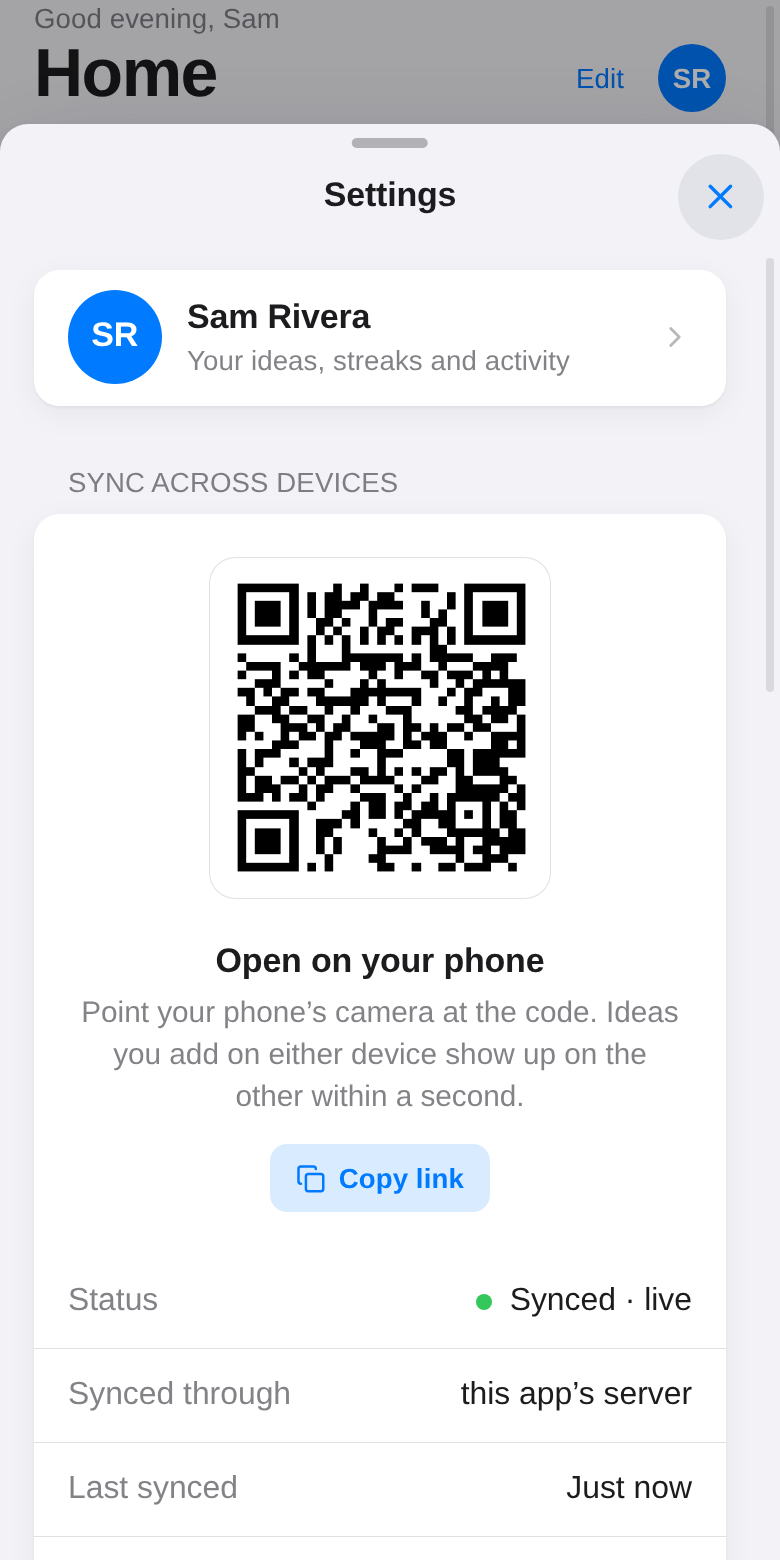
Add another device
- Phone and computer: on the computer, open Settings and scan the QR code with your phone's camera. Or tap Copy link and open that link on the other device.
- By hand: copy your key (Settings, next to your key) and paste it into Settings → Open another vault on the other device.
After that, both open the same vault on their own.
Offline
Everything is saved on the device first, so HiveSight opens and works without a connection. Changes made offline are sent as soon as you're back online.
If two devices edited different ideas, both changes are kept. If they edited the same idea, the most recent edit wins.
The sync dots
- A green dot next to an idea means its latest edit is synced.
- The dot at the bottom of the sidebar (or in Settings → Status) shows the whole vault: synced, syncing, waiting, offline or a problem.
Stop syncing one note
Any note can stop syncing on one device: in the editor, ⋯ → Stop syncing this note (on a computer, the cloud button). Its dot then says This device only, and your other devices keep the last synced copy. Resume syncing this note turns it back on.
Switch vaults
Settings → Open another vault opens a different vault, or starts an empty one with a new key.