
Write
Capture ideas
Type or speak an idea the moment you have it.
Type it
Tap New idea (bottom right on a phone, + at the top of the sidebar on a computer, or Quick capture on Home). Start writing: the first line becomes the title and the rest is the body.
Say it
Tap the microphone (next to New idea, or Speak on Home) and talk. Tap again to stop, then Save.
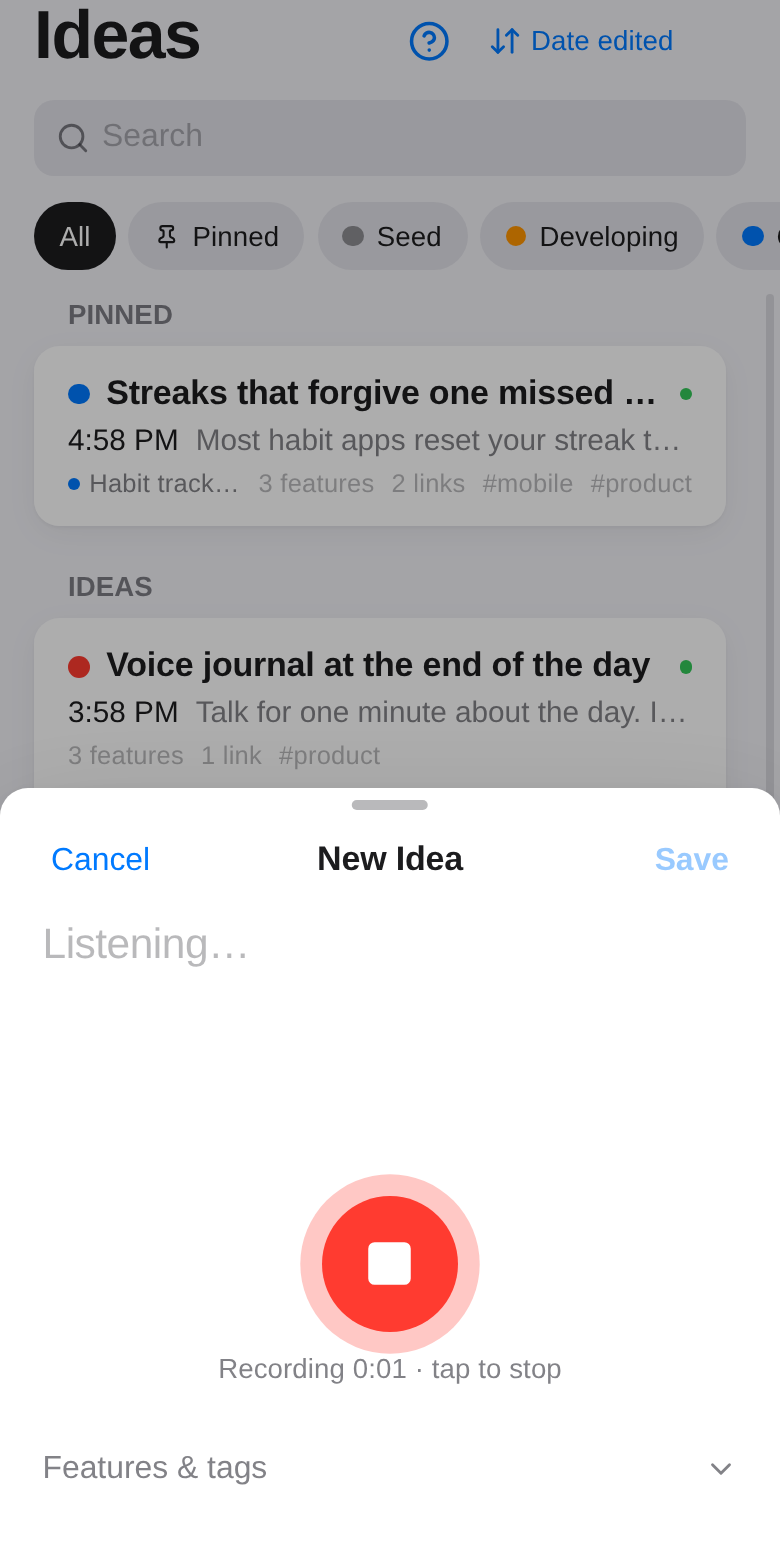
Voice works two ways, and HiveSight picks the right one by itself:
- Live: your words appear as you speak. This uses your browser's own speech recognition (Chrome, Edge and Safari).
- Record, then write out: in browsers without speech recognition (Brave, Opera, Vivaldi, Arc, or networks that block it), HiveSight records up to 2 minutes and then writes it out for you.
You can also dictate into a note you're already writing: tap the microphone at the top of the editor.
Voice needs an internet connection and permission to use the microphone. If your browser says the microphone is blocked, allow it in the site settings (the icon left of the address bar) and tap Try again.
Add features and tags while capturing
Open Features & tags at the bottom of the capture sheet to add them right away. What they're for is explained in Organize.
Ideas and notes
Everything you capture is an idea by default: something to build on. Switch it to a note in the editor (the Idea / Note chip) for reference material like meeting notes or lists. Both live in the same list.